Vertical Screen Mode on Android TV: Mirror, Share & Enjoy on the Big Screen
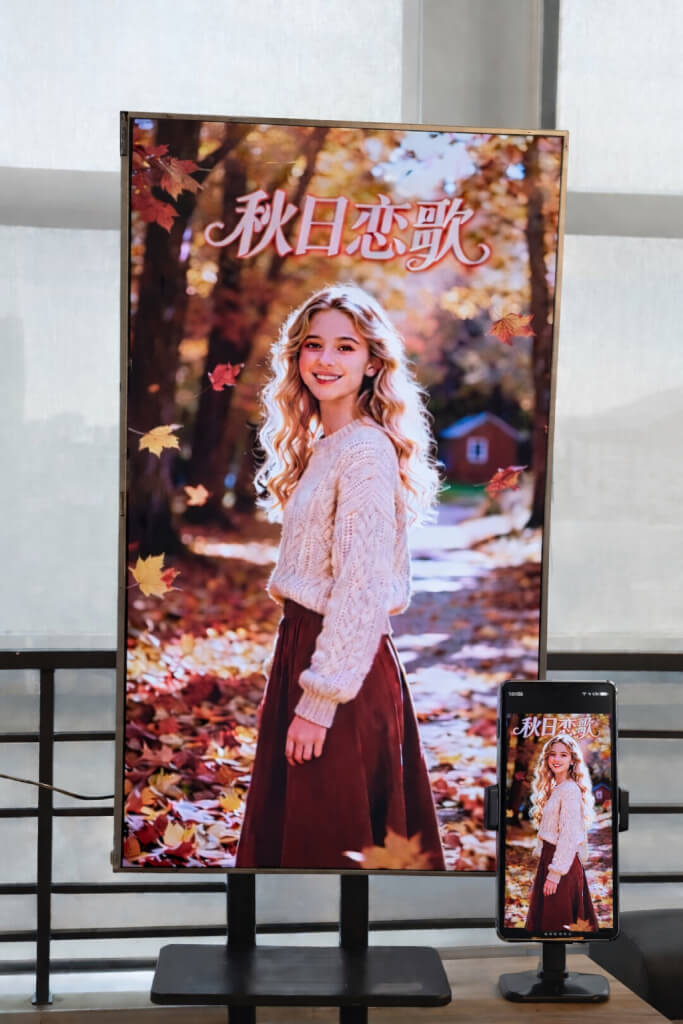
With 1001 TVs, you’re no longer limited to traditional horizontal mirroring.
Now you can enjoy a fully optimized vertical viewing experience on your Android TV.
Whether you’re watching short videos, browsing social media, sharing albums, or transferring files, 1001 TVs makes everything smooth and effortless on the big screen.
1. Install 1001 TVs on Your Android TV
Download and install 1001 TVs app both on your phone and Android TV.
Make sure your TV and mobile device are connected to the same Wi-Fi network.
📥 TV App: How to Install 1001 TVs on Your TV
📱 iOS App: Download from App Store
📱 Android App: Download from Google Play
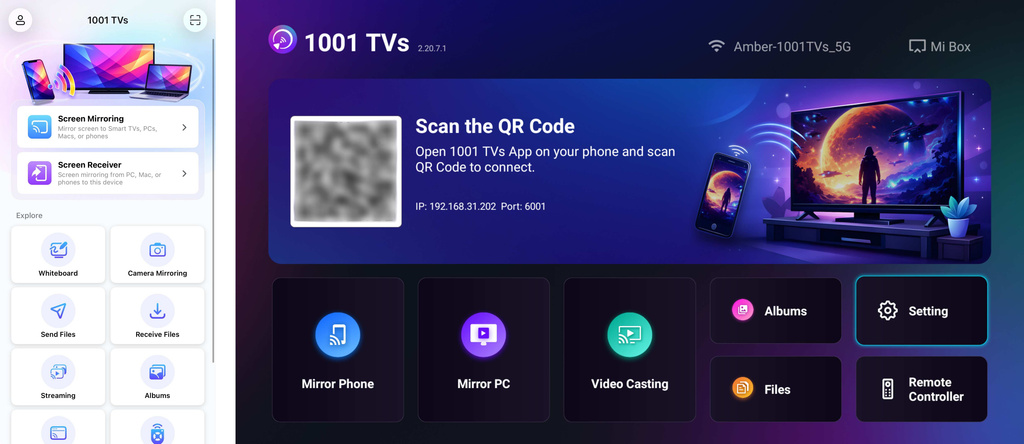
Open the 1001 TVs app on your TV and go to Setting.
2. Adjust the Screen Orientation
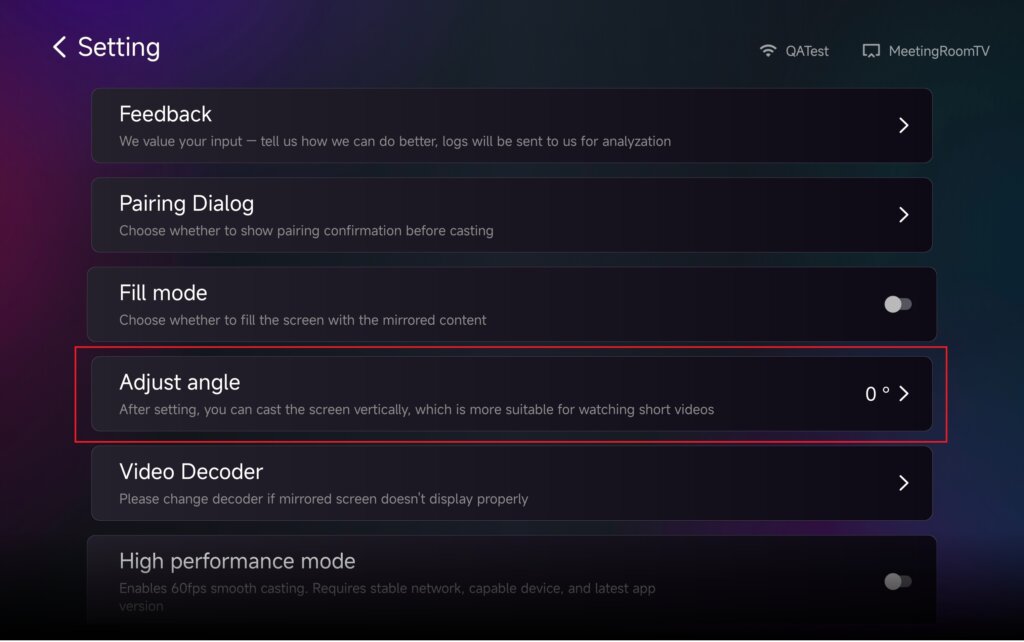
In Setting, select Adjust angle.
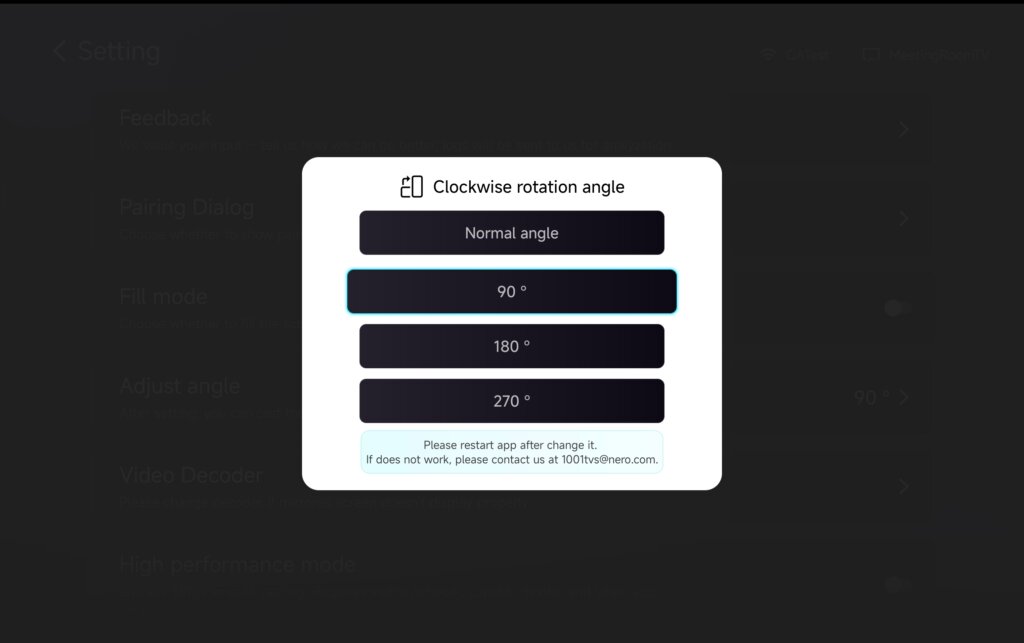
Adjust the angle to enable Vertical Mode based on your needs.
After changing the angle, please restart the app to apply the changes.
3. Use Vertical Mode with Mirroring, Files Transfer & Albums
Screen Mirroring
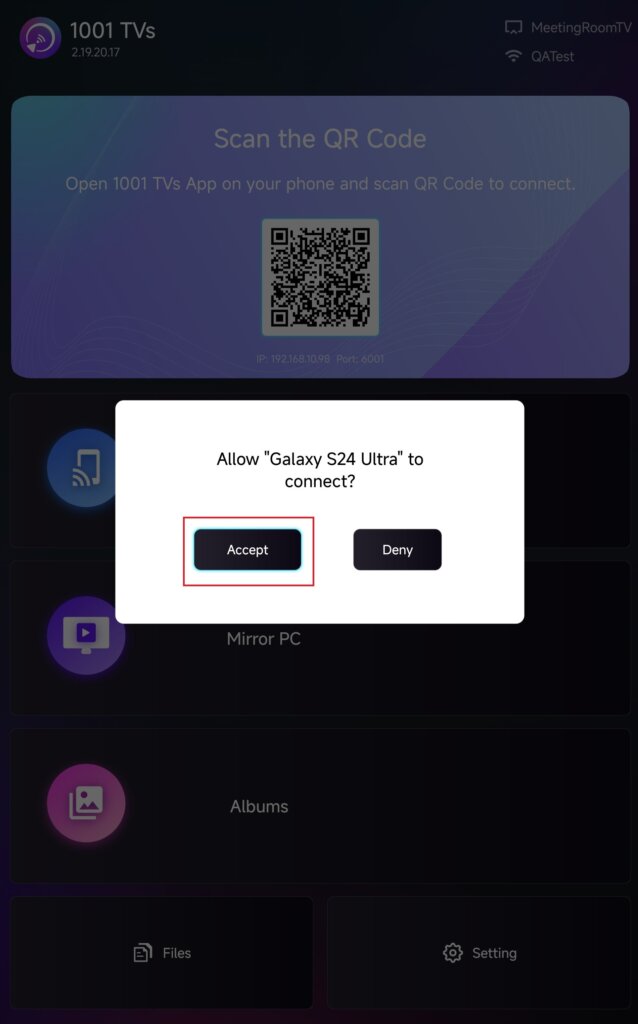
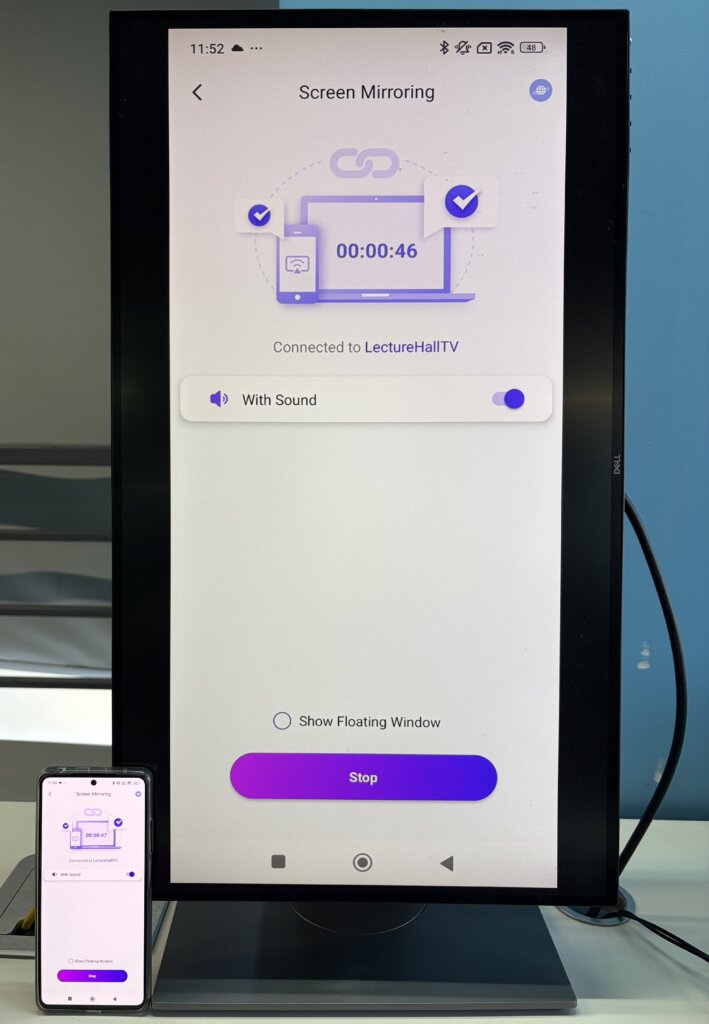
Select your TV from the device list, or scan the QR code shown on your TV screen.
Once connected, tap Accept on your TV to start mirroring.
Send Files
Select your TV from the device list to establish a connection.
Then tap Send and choose the files you’d like to transfer.
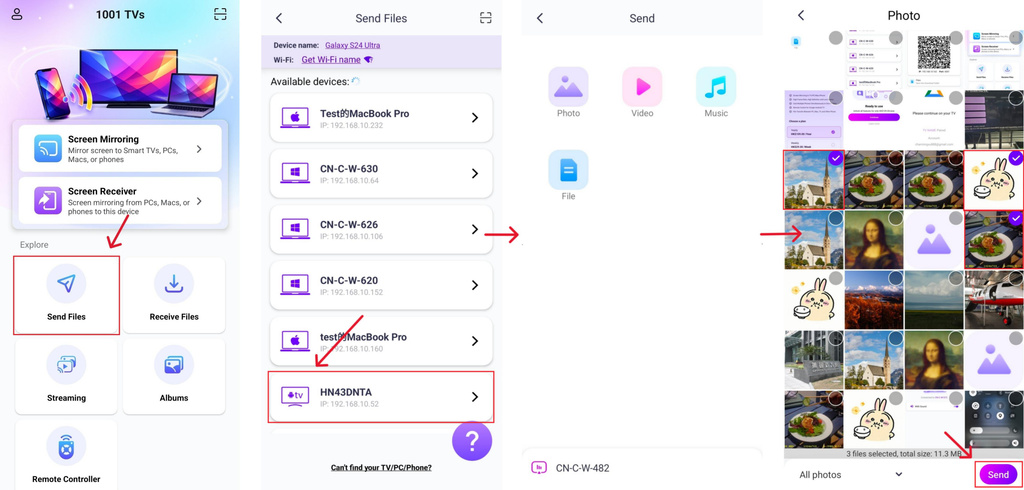
The files will be delivered directly to your TV and ready to open.
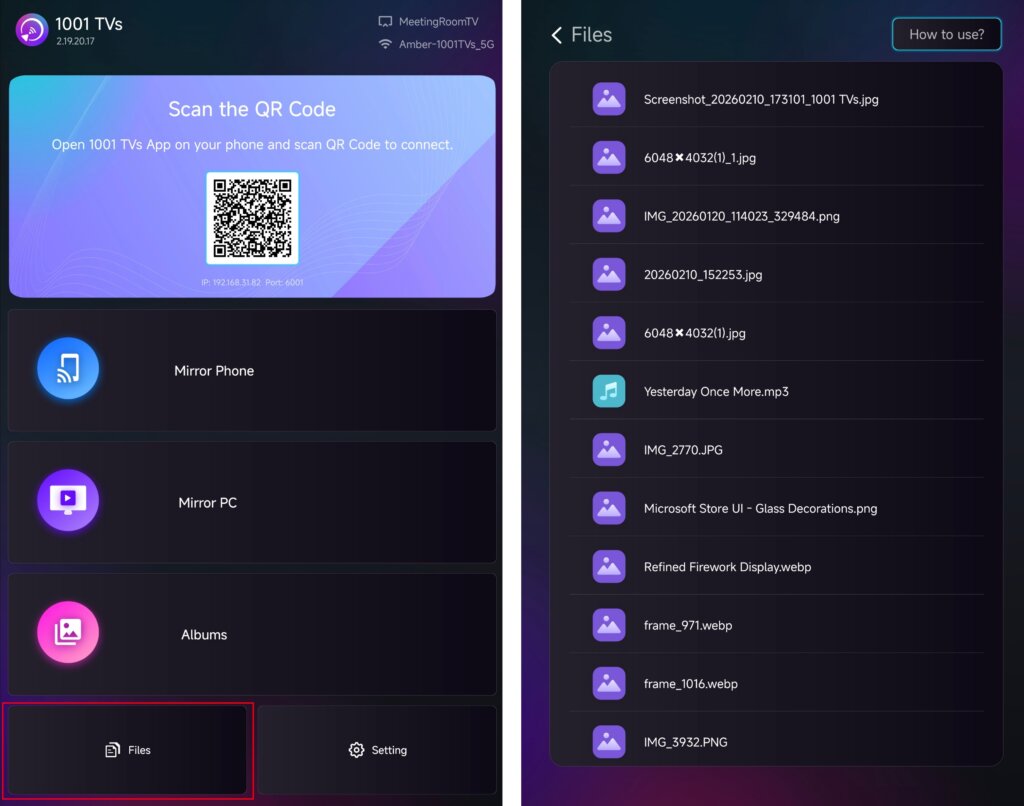
For detailed instructions, see the tutorial: Send Files to TV from Your Phone
Albums
Select your TV from the device list and upload your photos or videos from your phone.
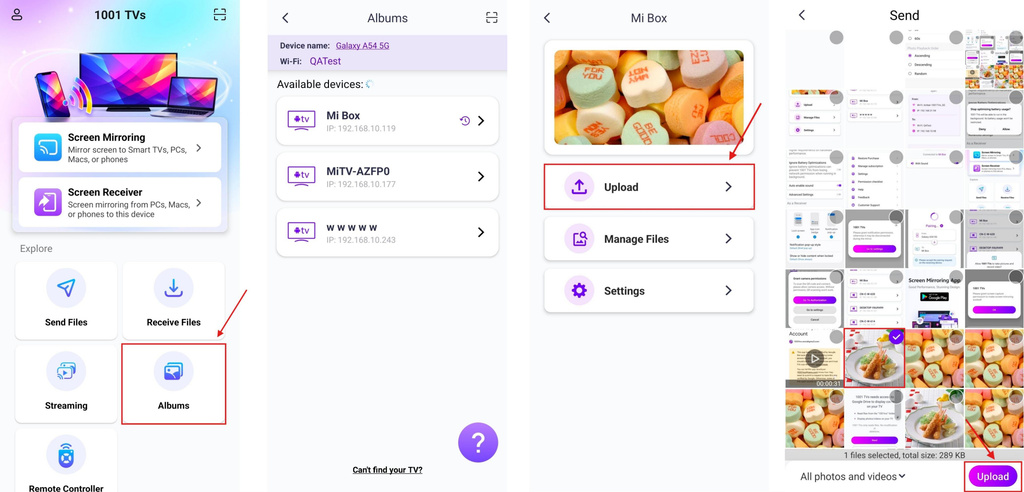
On your TV, open Albums to browse and play the uploaded content at any time.
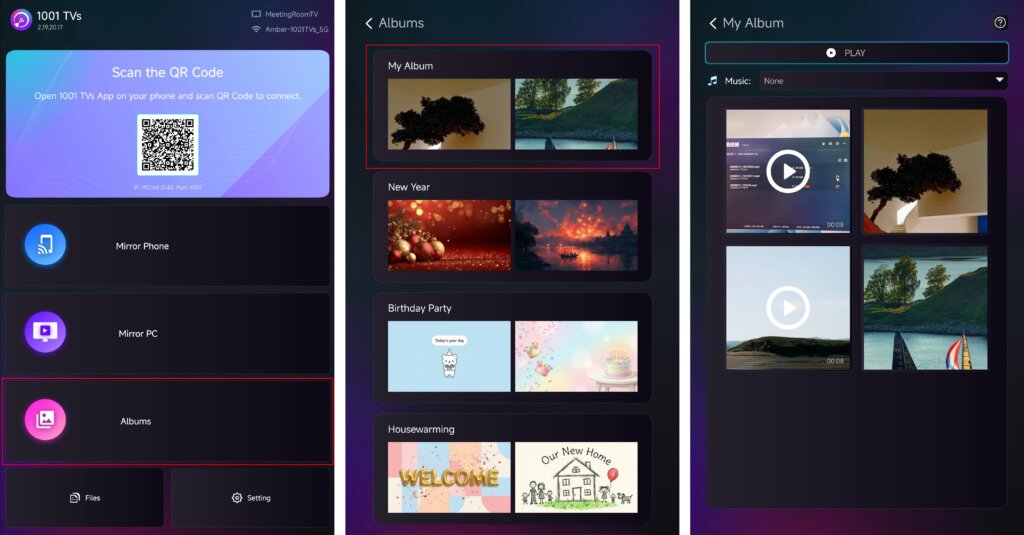
For detailed instructions, see the tutorial: How to Share Home Slideshow/Family Album from Phone to TV
Streaming
✅ Supported on Android TV 2.20.2.0+
Select your TV from the device list and choose the content you want to stream.
The media will begin playing on your TV automatically, allowing you to enjoy it on a larger screen.
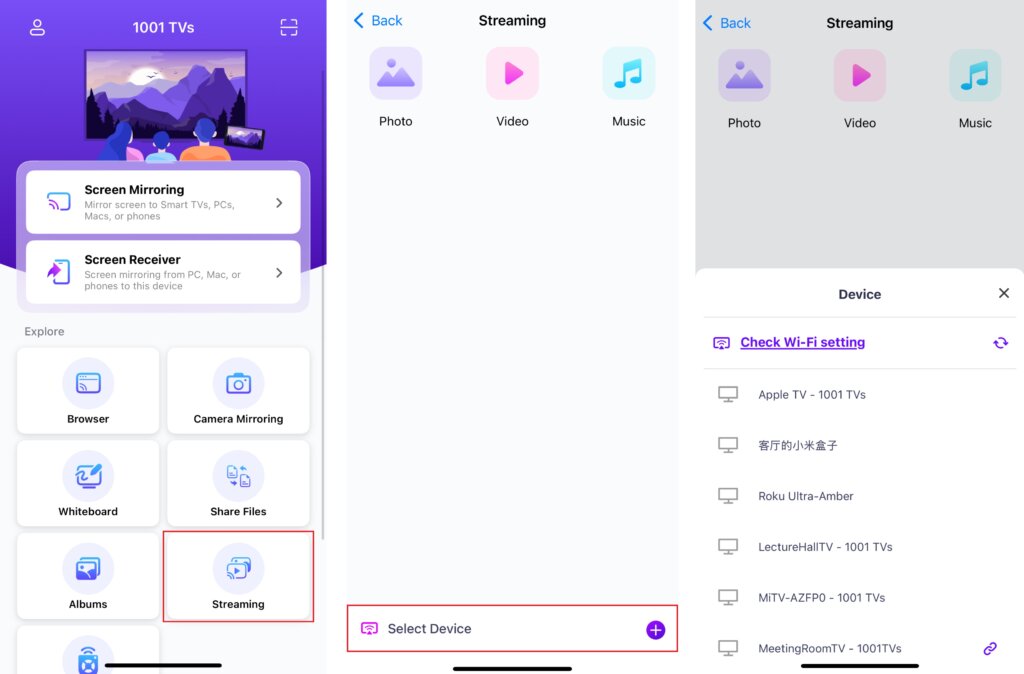
For detailed instructions, see the tutorial: How to Stream Media Files from Phone to TV
4. Resize the Screen Content
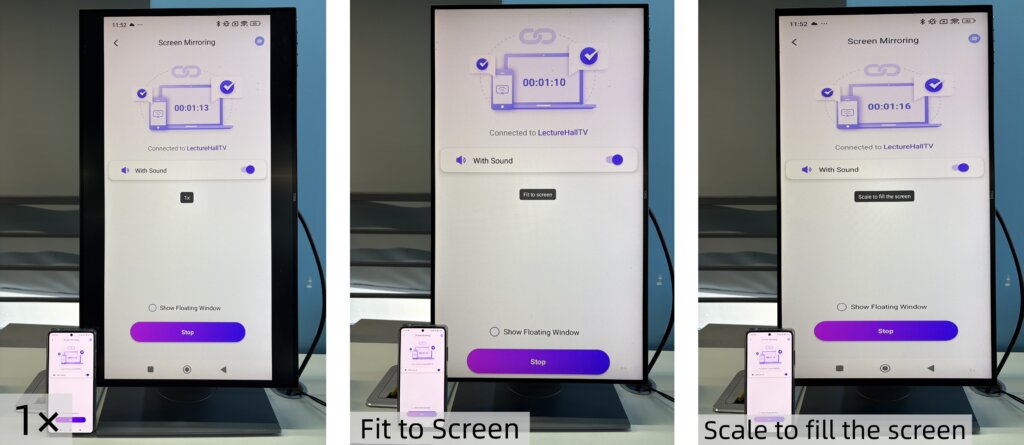
To fine-tune the displayed content size, press the Up and Down buttons on your TV remote.
You can switch between the following display modes:
- 1 × – Display at original size
- Fit to Screen – Automatically resizes to fill the screen while maintaining the original aspect ratio
- Scale to Fill the Screen – Stretches the image to completely fill the screen
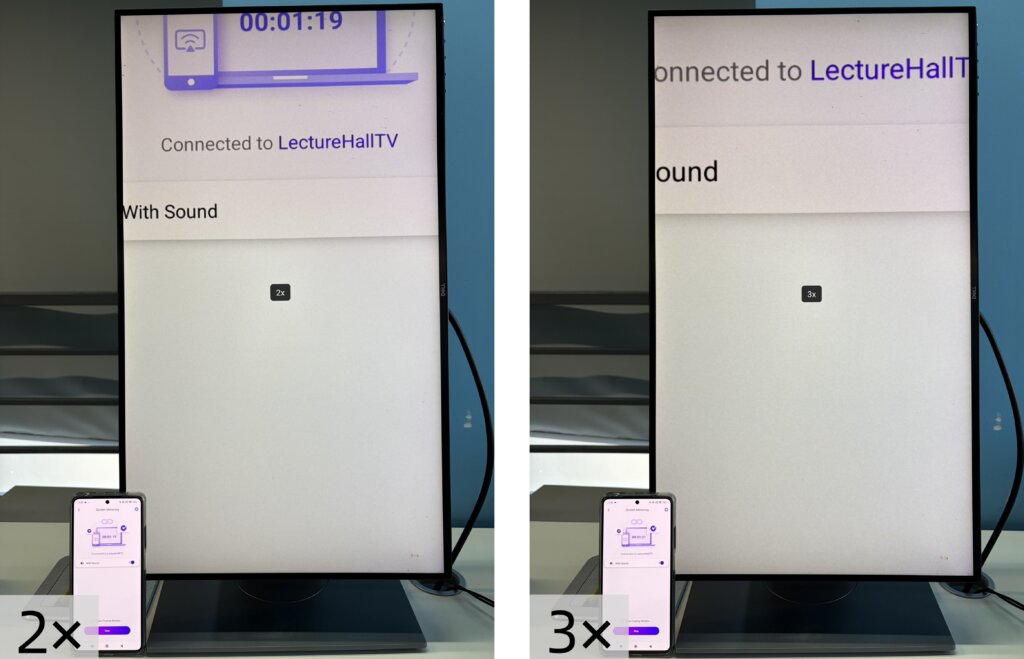
- 2× / 3× – Zoom in for a closer view
Select the display mode that best suits your viewing needs.
Note:
Resize modes are fully supported in Screen Mirroring.
They are not supported in Streaming.
In Files and Albums, 2× and 3× zoom are not available.
5. Enjoy Vertical Mode
You’re all set. Start mirroring or sharing content in Vertical Mode and enjoy a new viewing experience on your TV.
Get 1001 TVs Now!
📥 TV App: How to Install 1001 TVs on Your TV
📱 iOS App: Download from App Store
📱 Android App: Download from Google Play
Read More
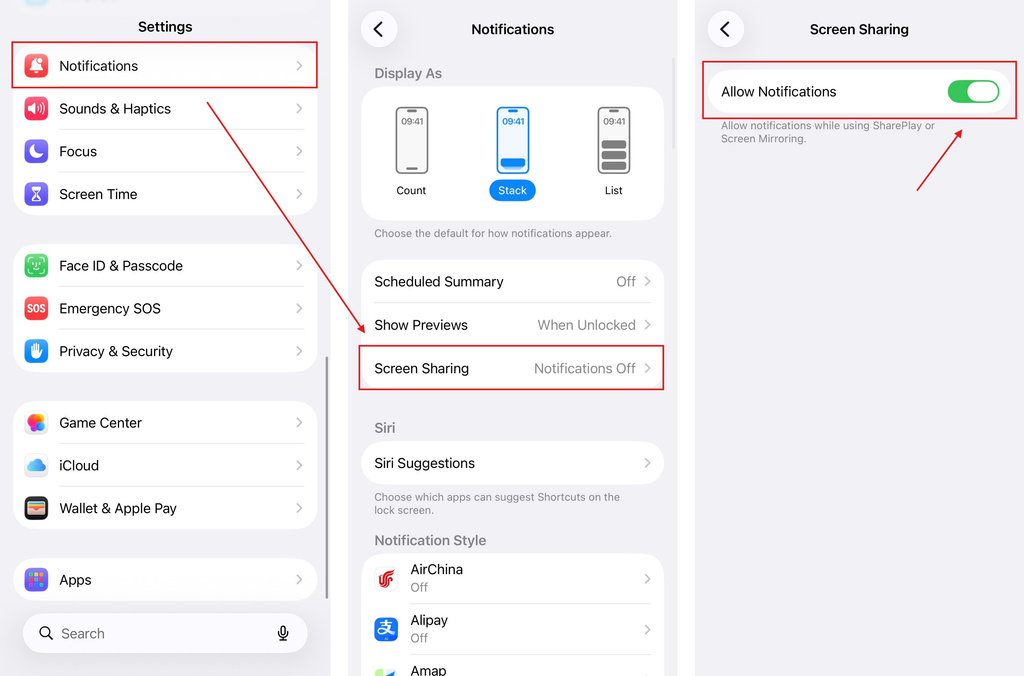 iOS: How to Fix Missing App Notifications During Screen Mirroring
Why Notifications Are Missing When you mirror your iPhone screen, notifications from other apps may not appear on the mirrored screen. This can happen…
iOS: How to Fix Missing App Notifications During Screen Mirroring
Why Notifications Are Missing When you mirror your iPhone screen, notifications from other apps may not appear on the mirrored screen. This can happen…
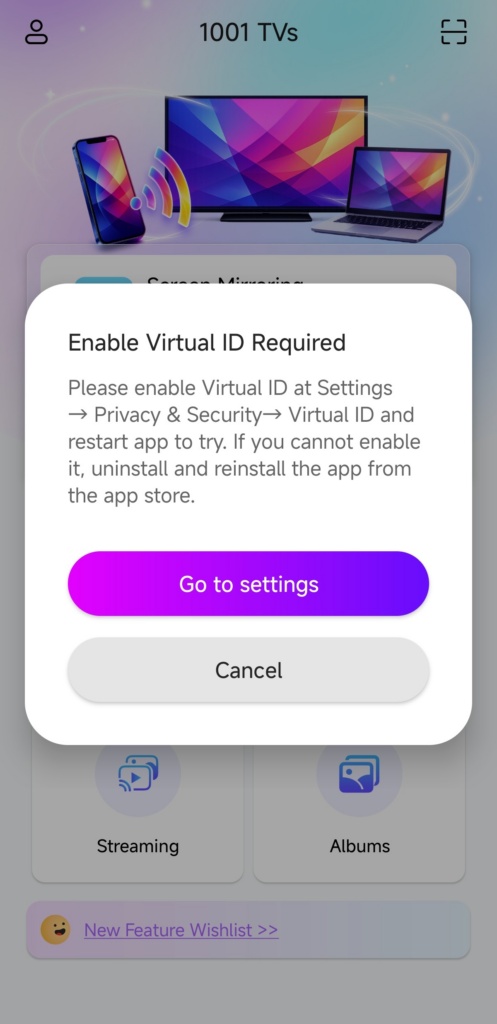 How to Fix the Enable Virtual ID Required Pop-Up
If you're using a Xiaomi or Redmi phone or tablet, you might see a pop-up that says "Enable Virtual ID Required" when you launch…
How to Fix the Enable Virtual ID Required Pop-Up
If you're using a Xiaomi or Redmi phone or tablet, you might see a pop-up that says "Enable Virtual ID Required" when you launch…

